
How to Use 3D Printing Molecules
Preparing a molecule model for 3D printing has never been easier. The entire process can be summarized in three quick steps:
Step 1: Select a Molecule
First, tell the program which substance you want to model. You can use automatic import or upload your own data.
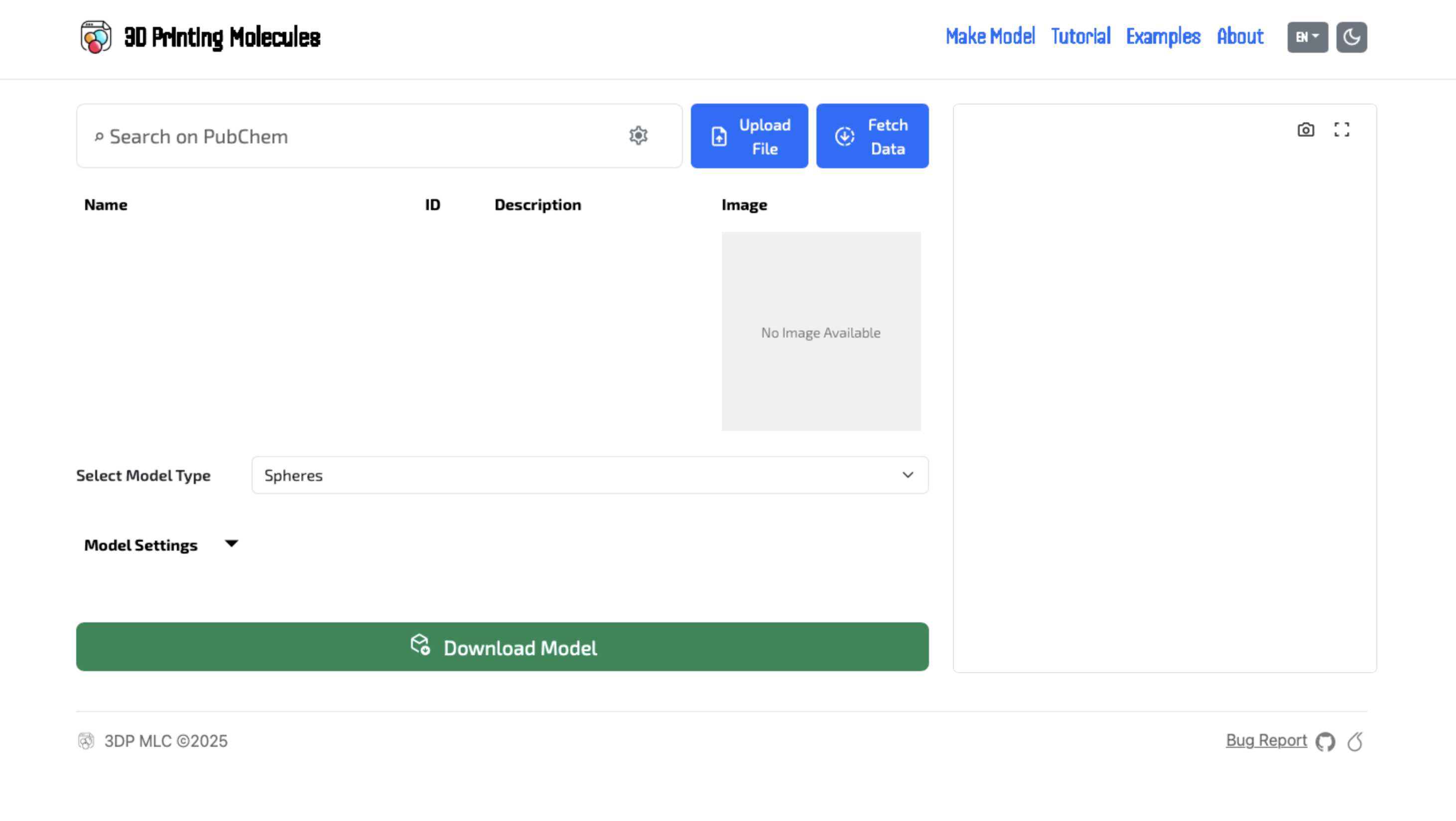
Fig. 1: PubChem search interface
- 1Search: Enter the English name of the substance into the "Search on PubChem" field and press Enter. Data will automatically download from the public database. Besides names, you can also enter a CAS number, a PubChem CID, a molecular formula (
H2O,CO2,H2SO4– case does not matter,h2so4orH₂Owork too) or SMILES (e.g.CC(=O)OC1=CC=CC=C1C(=O)O). A formula loads the most relevant compound; when several compounds share it (isomers), pick the one you want in Advanced Search. - 2Custom Data: Upload a
.sdf,.mol,.pdb,.cifor ChemDraw (.cdx,.cdxml) file with the Upload File button, drag it onto the window, or paste it with Ctrl+V. The model loads right away. 2D structures (typically exported from ChemDraw or Marvin, without hydrogens) are converted to 3D automatically and hydrogens are added.
Advanced Search & Specific Inputs
Need to model a compound from a SMILES string, a macromolecule from the Protein Data Bank, a crystal lattice, or a cofactor with a bound metal? The app supports advanced multi-database search.
Example: Search bar with prefix and tabs in the Advanced Search dialog
- A Gear Icon (Search Settings): Click the gear button settings on the right side of the main search bar to open the Advanced Search popup. Here you can switch between databases via tabs, use interactive filters (like chain selection for PDB), or try pre-configured example molecules.
- B Direct Prefixes in Search Field: You don't even have to open the popup – just type a prefix followed by a colon directly into the main search box. The application automatically detects the query type and routes it to the corresponding service. Molecular formulas and SMILES are recognized even without a prefix.
Enter a molecular formula in the PubChem tab to list all compounds with that formula ordered by relevance – for C2H6O, for example, both ethanol and dimethyl ether – and pick the right one. With Choose a 3D conformer ticked, the app offers up to 10 spatial conformations PubChem has computed for the compound instead of the default structure. Each shows its MMFF94 energy and, in brackets, the difference to the most stable one. Useful for demonstrating molecular flexibility or printing several conformations side by side. The conformer is kept in the search history and in shared links.
H2SO4, C2H6O (isomers), Aspirin + Choose a 3D conformer. Salts and metal complexes often have no 3D conformers – the app then offers a 2D → 3D conversion.There are three ways to bring a structure over from ChemDraw: save it as .cdx or .cdxml and upload the file; use Edit → Copy As → MOL Text or CDXML Text and paste with Ctrl+V anywhere in the app (outside other text fields); or use Copy As → SMILES and paste it into the search box. A .mol file from ChemDraw, Marvin, ChemSketch or another editor works the same way. Drawn (2D) structures have no spatial coordinates or hydrogens, so they are converted to 3D automatically – online via NIH CACTUS, offline locally (OpenBabel). Group abbreviations (Ph, OMe…) are expanded, and charges and stereochemistry from wedge bonds are preserved.
Converts linear chemical notation directly into 3D coordinates using NIH CACTUS CIR (with PubChem 3D fallback). Ideal for custom, synthetic, or exotic compounds outside standard catalogs. SMILES with branches, rings or multiple bonds (e.g. ChemDraw Copy As → SMILES output) are recognized even without the prefix.
smiles: CC(=O)Oc1ccccc1C(=O)O (aspirin), smiles: C1CCCCC1 (cyclohexane), smiles: C12C3C4C1C5C2C3C45 (cubane)Fetches macromolecular structures from the Protein Data Bank (proteins, enzymes, DNA, RNA). In the Advanced Search dialog, you can also specify an individual chain and toggle crystal water molecules.
pdb: 1CRN (crambin), pdb: 1BNA (B-DNA), pdb: 1CRN:A (chain A)Downloads ligands and cofactors from the PDB Chemical Component Dictionary. Perfect for 3D printing metal-complexed cofactors, dyes, and drugs bound to macromolecules.
ccd: HEM (heme), ccd: ATP, ccd: CLA (chlorophyll a)Queries the Crystallography Open Database. Allows you to load inorganic crystal lattices, salts, and minerals by fulltext name, empirical formula, or numeric COD ID.
cod: 1506182, cod: CaCO3 (calcite), cod: quartz, cod: NaClSketch a structural formula right on the canvas: pick a bond (single, double, triple, or a wedge/hashed bond for stereochemistry), an element (C, H, O, N, P, S, F, Cl, Br, I, B, Si, Se, or any other from the Other menu) or a ring (benzene, cyclohexane, cyclopentane; more cycloalkanes and heterocycles such as pyridine or furan under More rings) and click or drag. The +/− tools set atom charges, and the formula and SMILES of the drawing are shown live below the canvas. Clicking an existing atom with an element changes it; clicking empty space adds a new atom. The Generate 3D Model button then computes 3D coordinates, hydrogens included.
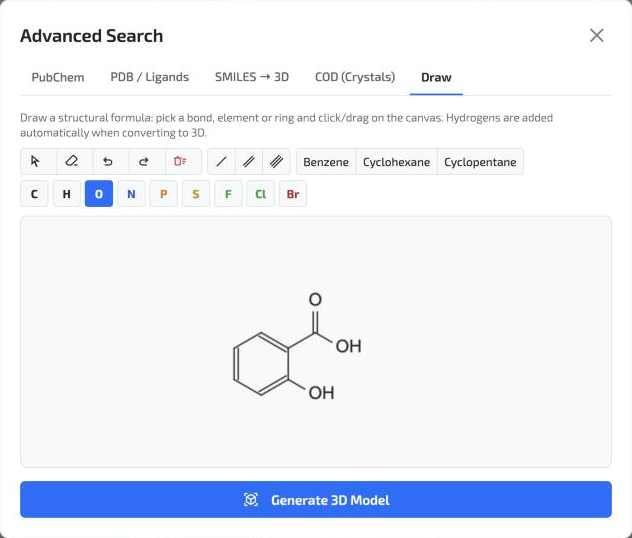
Example: salicylic acid sketched in the Draw tab
Step 2: Display Interface
After loading the data, the model settings will become available. The first step is selecting the molecule representation.
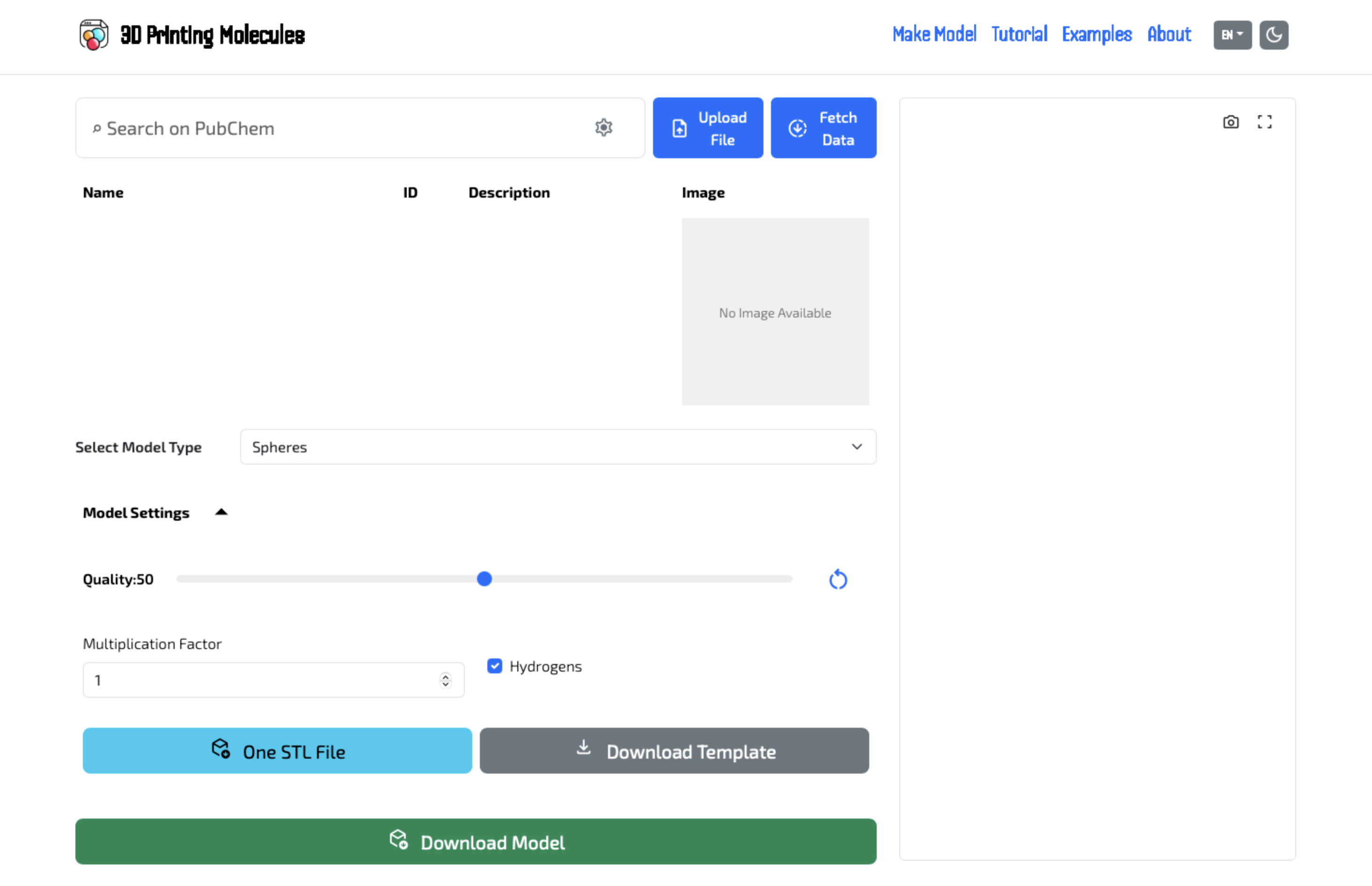
Fig. 2: UI showing the representation dropdown menu
Step 3: Choose Representation Type
Choose the look that best suits your needs for education or 3D printing.
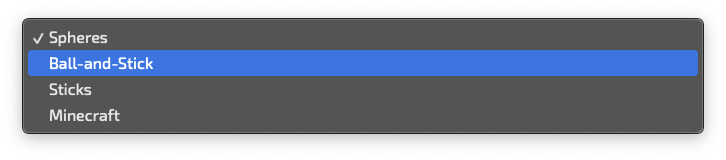
Fig. 3: Dropdown menu options
- 3Select Model Type: Select the desired look (Spheres, Ball-and-Stick, Sticks, or our secret Minecraft mode).
Step 4: Parameter Settings and Export
Adjust the details and proportions of the model for optimal printing. Hover over the individual options below to see how the parameters visually change the result.
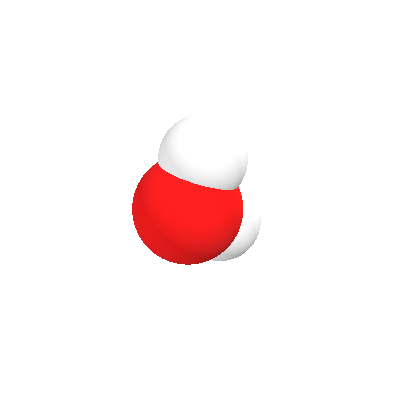
Default Mesh Quality (Quality: 50)
Standard setting for a nice and smooth spherical model.
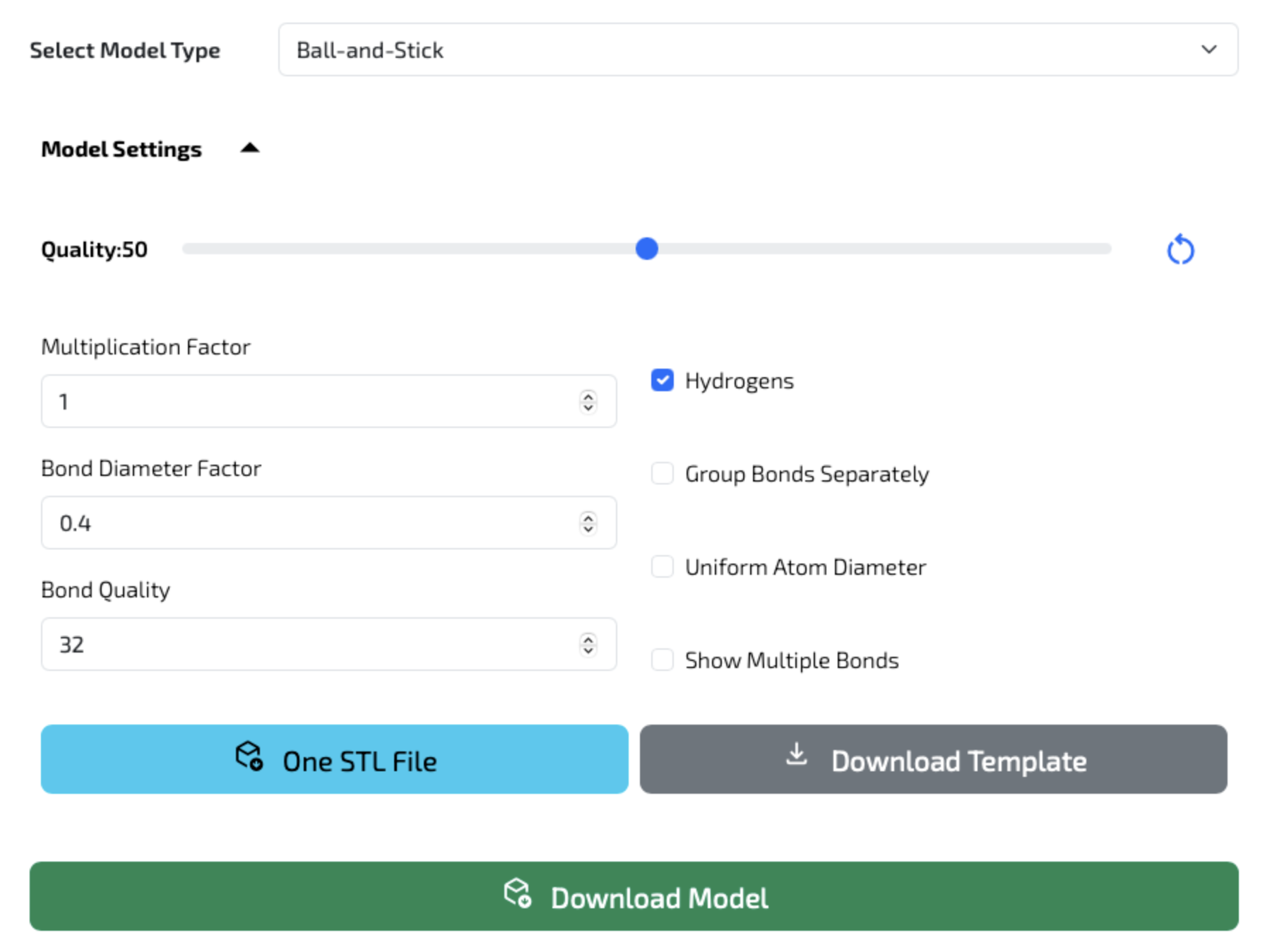
Fig. 4: Model parameters and export options
- 4Model Settings: Here you can adjust the quality, model size, bond diameter, or display of hydrogens.
- 5Export Options: The Download Template button downloads the raw
.sdfdata of the molecule. The blue One STL File button exports a merged single-color model. - 6Final Multicolor Export: Using the green Download Model button, you will download a
.ziparchive with models separated by atoms for easier color assignment in the slicer.
Step 5: Apply Changes (Reload)
The image shows a more complex model (ATP). Remember that after any adjustment in the Model Settings section, the preview does not update automatically.
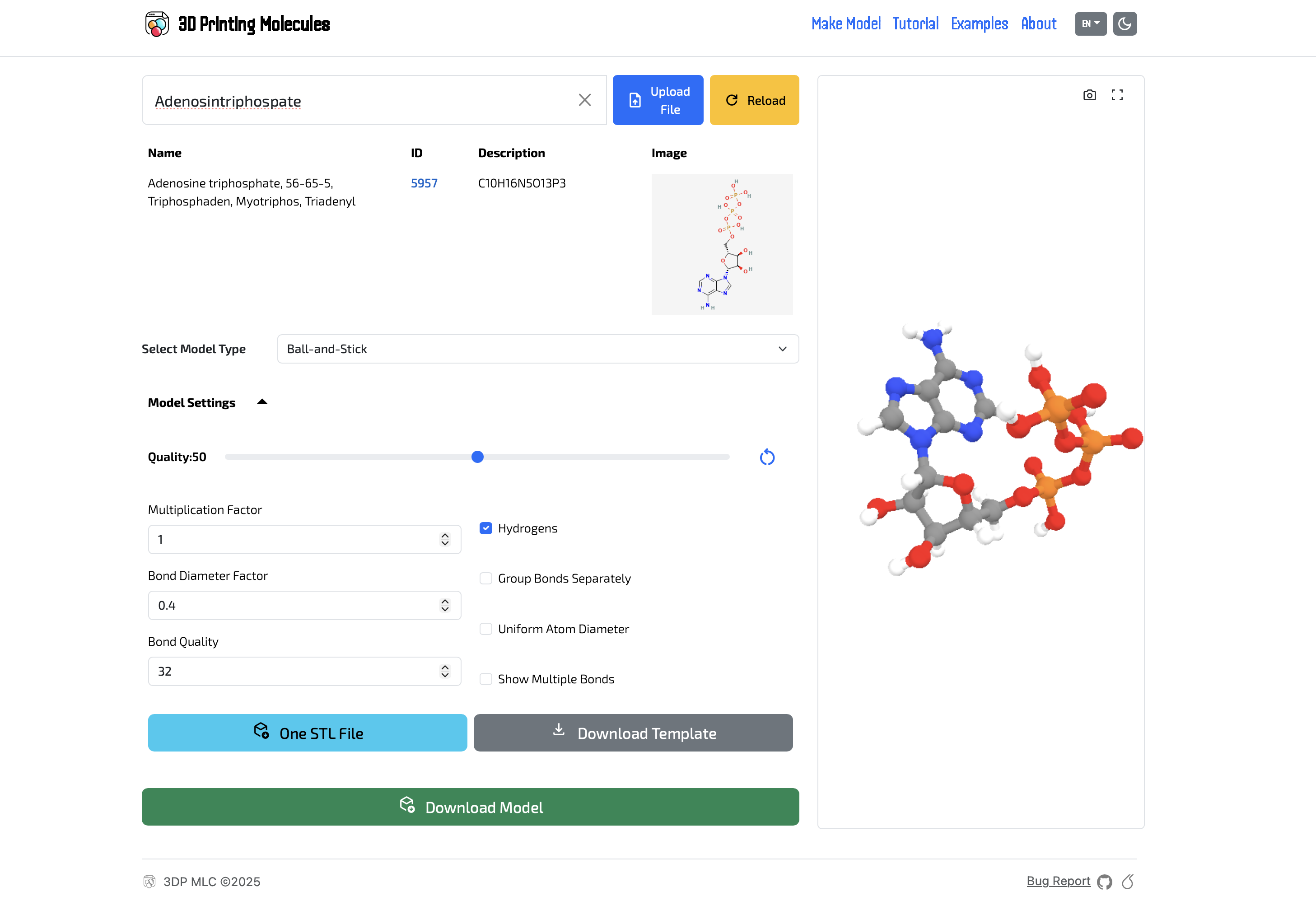
Fig. 5: ATP model and the yellow Reload button
- 7Reload Button: Whenever you adjust the settings, always click this yellow button first. This applies the changes to the 3D preview.
Offline Usage and PWA Installation
You can install 3D Printing Molecules as an app on your computer or phone. After the first visit with an internet connection, the app is stored in your browser and keeps working without an internet connection – in a classroom, in the lab, or on the go.
- Installing on a computer (Chrome, Edge): Click the Install app icon install_desktop in the address bar (right next to the URL) and confirm Install. The app then opens in its own window and appears in your Start menu / Launchpad.
- Installing on a phone: In Safari (iPhone, iPad), tap Share ios_share → Add to Home Screen. In Chrome (Android), open the ⋮ menu → Install app (or Add to Home screen).
Uploading your own files from disk (.sdf, .mol, .pdb, .cif, ChemDraw .cdx/.cdxml; 2D structures are converted to 3D by a local computation), the 3D preview and all representation types, editing model parameters, moving joints, the watertightness (manifold) check, and exporting to .3mf / .stl with the Download Model button. Draw a Molecule in Advanced Search works too – the 3D model is computed locally (OpenBabel). This requires the computation module (~8 MB) to be stored on your device already: in the browser, open the Draw tab at least once while online; the installed app (PWA) downloads it automatically when launched online.
Searching and downloading structures from online catalogs – PubChem, PDB (including CCD ligands), COD, and SMILES conversion via NIH CACTUS. The Slice button, which opens the model directly in a slicer, also needs the internet.
.3mf via Download Model and open it in your slicer manually.How to import to slicer?
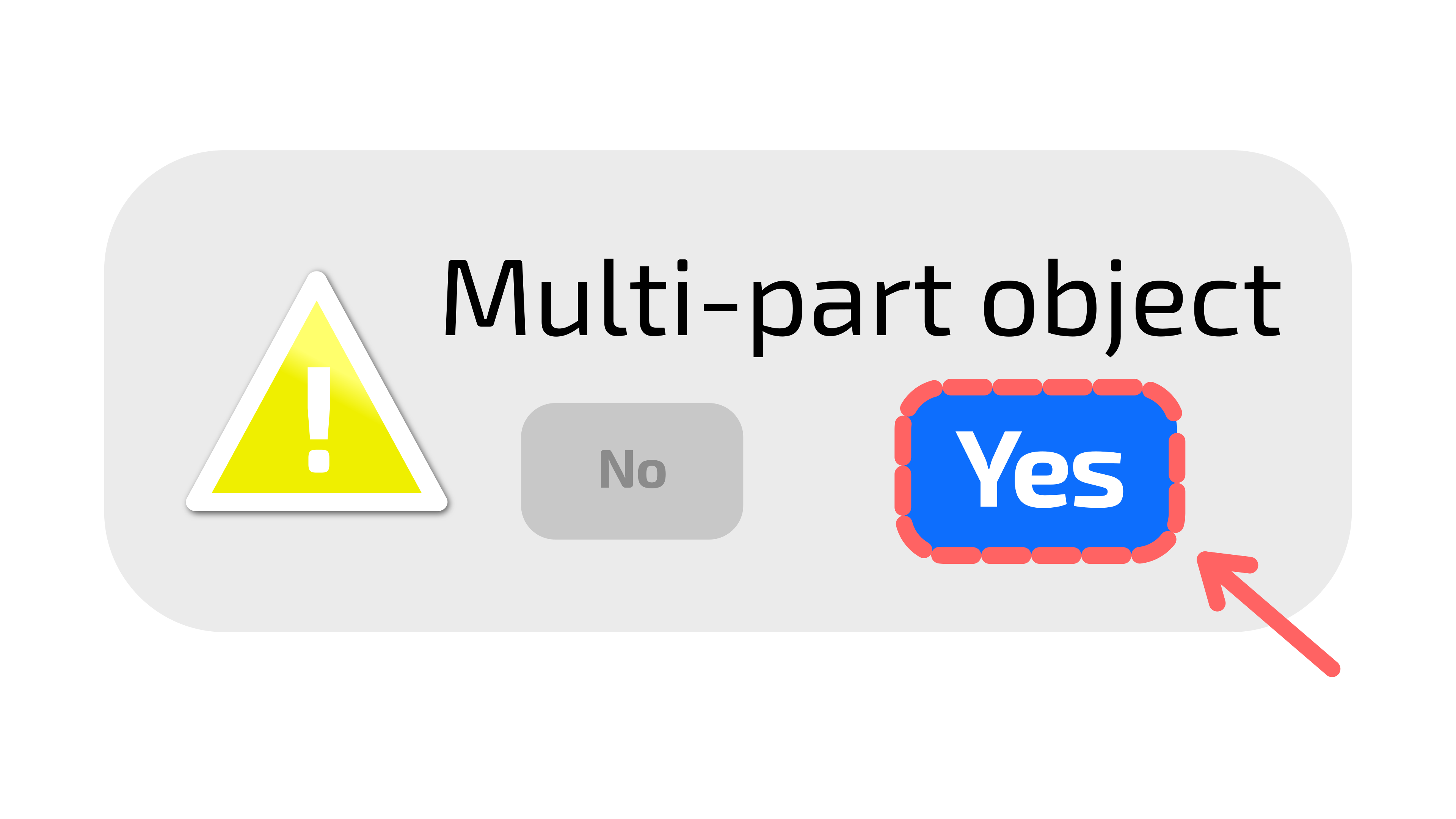
For multicolor molecule printing, ensure the slicer shows the message
‘Multi-part object detected / An object with multiple parts was detected,’
then confirm by selecting ‘YES.’
Try Ready-to-Print Models on Printables and MakerWorld
Looking for inspiration or want to print popular molecules directly without tweaking settings? Explore our collection of verified, ready-to-print 3D molecule models directly on Printables and MakerWorld.